How to create a photo album by location on iPhone
"Is there a way to create a smart album using location?" It's one of the most common Apple Photos questions, and the answer is a little frustrating: Photos knows where almost every iPhone photo was taken, but it doesn't have a button that turns a place into an album.
This guide covers three built-in ways to get close, where each one stops, and a fourth option if you keep going back to the same places — your parents' house, a cottage, a city you visit every year.
What this guide doesn't cover: removing location data from photos, or photos that never had it (scans, most screenshots, some imported camera files). Everything below only works for photos with GPS data, which is the default for photos taken on iPhone with Location Services on for the Camera.
Method 1: Search for the place name
The quickest route if the place has a name Photos recognizes.
- Open Photos and tap the search button.
- Type the place: a city, a neighborhood, a landmark, sometimes a street.
- Open the results, tap Select, select the photos you want, then tap the more button and Add to Album.
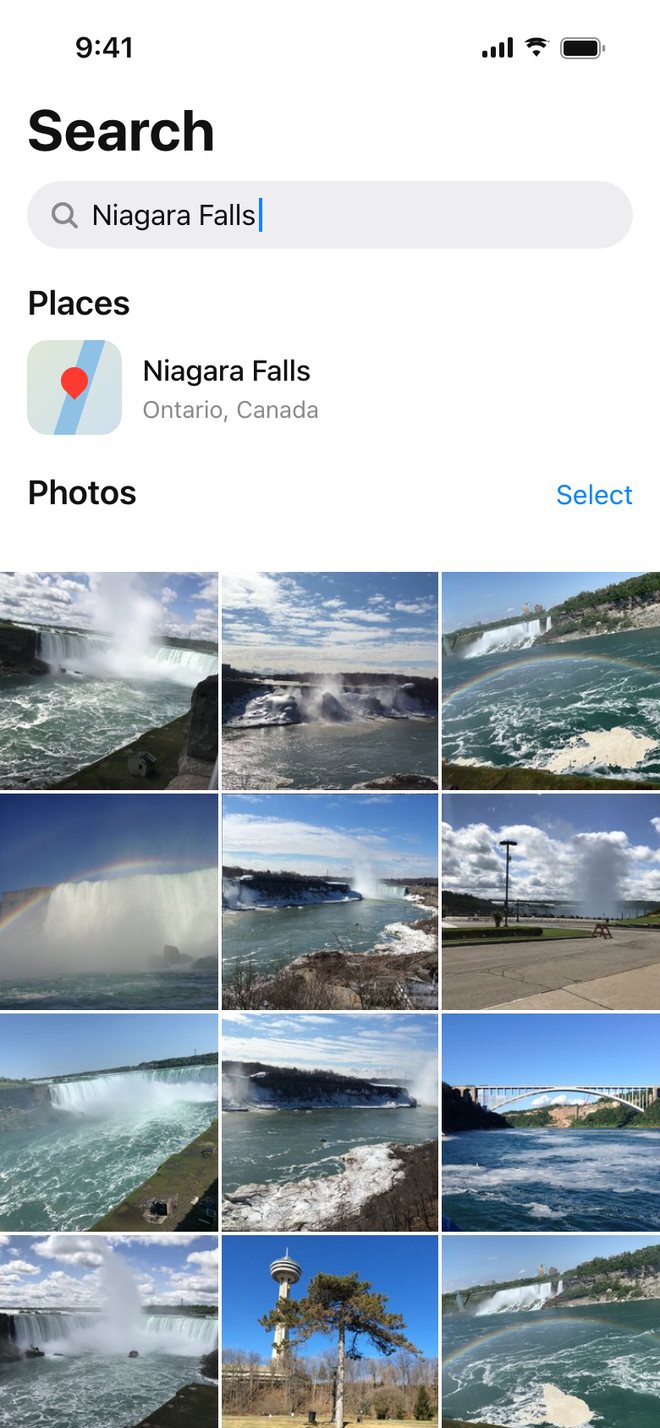
Where it stops: search works on place names. "Toronto" is easy. "My parents' street" or "the lake where we rent the same cabin" usually isn't, and a city search pulls in everything else you shot in that city. You also choose the photos by hand.
Method 2: Use the map and Show Nearby Photos
Photos has a full map of your library. In iOS 27:
- In Photos, tap Library, tap the more button, then Show Map.
- Pinch and drag to the place, then tap a photo thumbnail to see everything taken there.
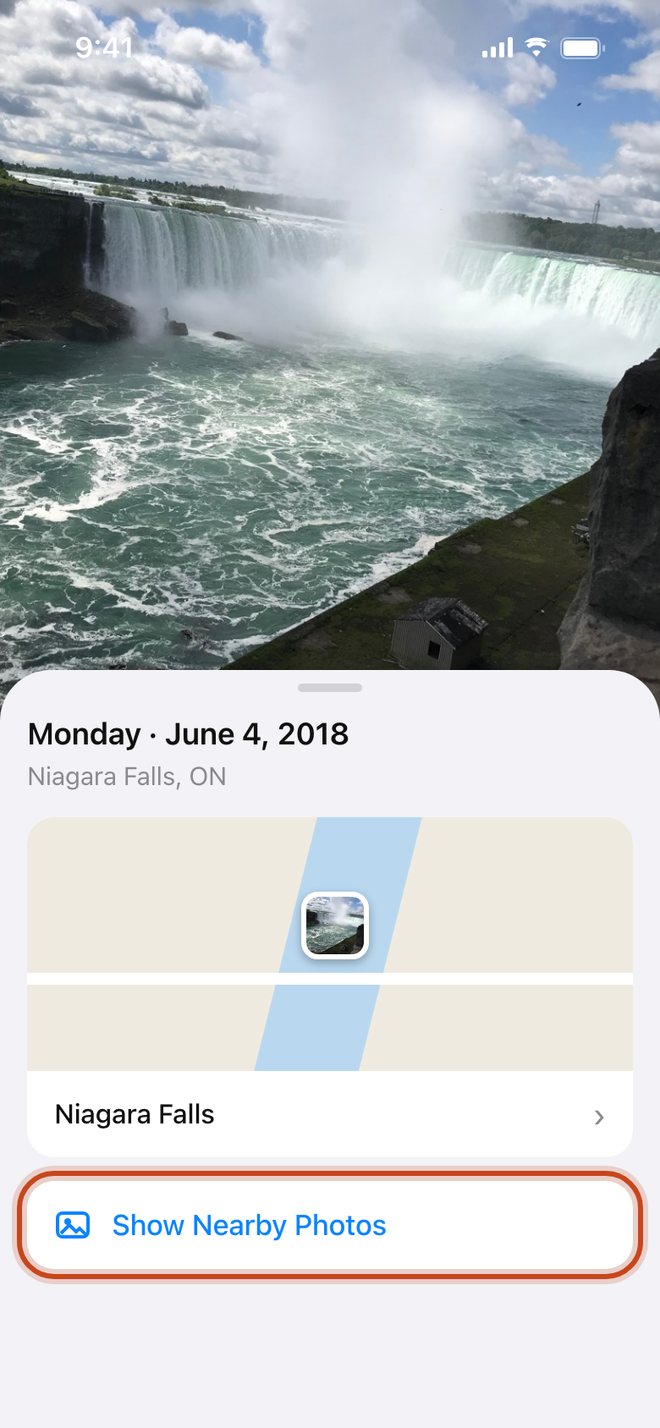
- Or start from a photo: open it, swipe up, and tap Show Nearby Photos.
- Tap Select, choose the photos, and Add to Album.
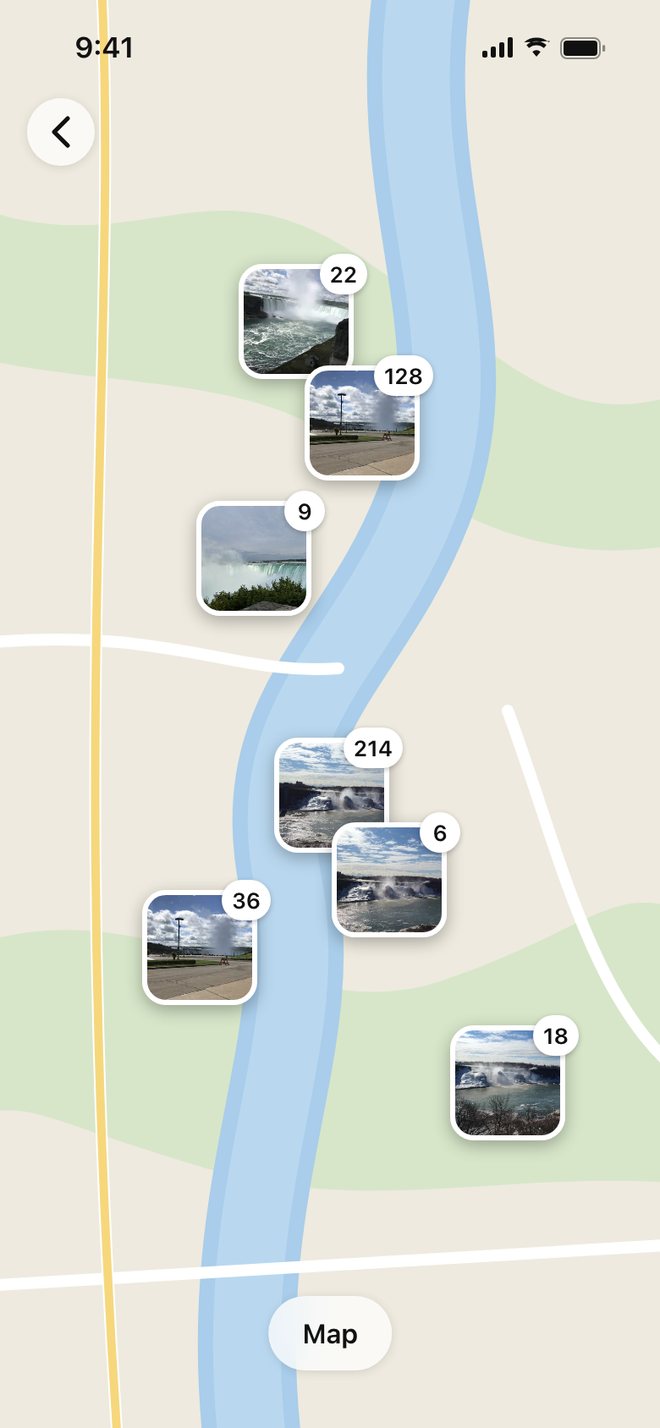
Where it stops: the map is built for browsing. Busy areas turn into overlapping clusters that need several pinch-zooms, and there's no way to say "everything within about a kilometer of this spot." Whatever album you make is a snapshot: after your next visit, you do it again.
Method 3: A Smart Album on Mac, or a Shortcut
If you have a Mac, Photos can make Smart Albums that fill themselves from rules — date, keyword, person, camera, and more. On iPhone, the Shortcuts app can find photos by filters and add them to an album, and you can run it on a schedule.
Where it stops: neither has a "within this distance of a point" rule. A date-range Shortcut works well for a single trip ("everything from July 3 to July 10 goes into Alaska"). It doesn't work for a place you return to over many years, because the dates are scattered.
Why the built-in ways fall short for "one place, many visits"
| What you want | Search | Map / Nearby | Smart Album / Shortcut |
|---|---|---|---|
| Works for places without a famous name | Sometimes | Yes | No |
| Picks photos by distance from a spot | No | No | No |
| Keeps one album you can add to later | Manual | Manual | By date only |
| Works on iPhone alone | Yes | Yes | Shortcuts yes, Smart Album Mac only |
None of this means Photos is doing something wrong. It's built around time (Days, Trips, Memories) and browsing (the map). A place you keep returning to cuts across years, which is exactly the shape those tools aren't designed for.
Method 4: Start from one photo with MemoryPlaces
Disclosure: MemoryPlaces is our app. Use the built-in methods above if they're enough for you.
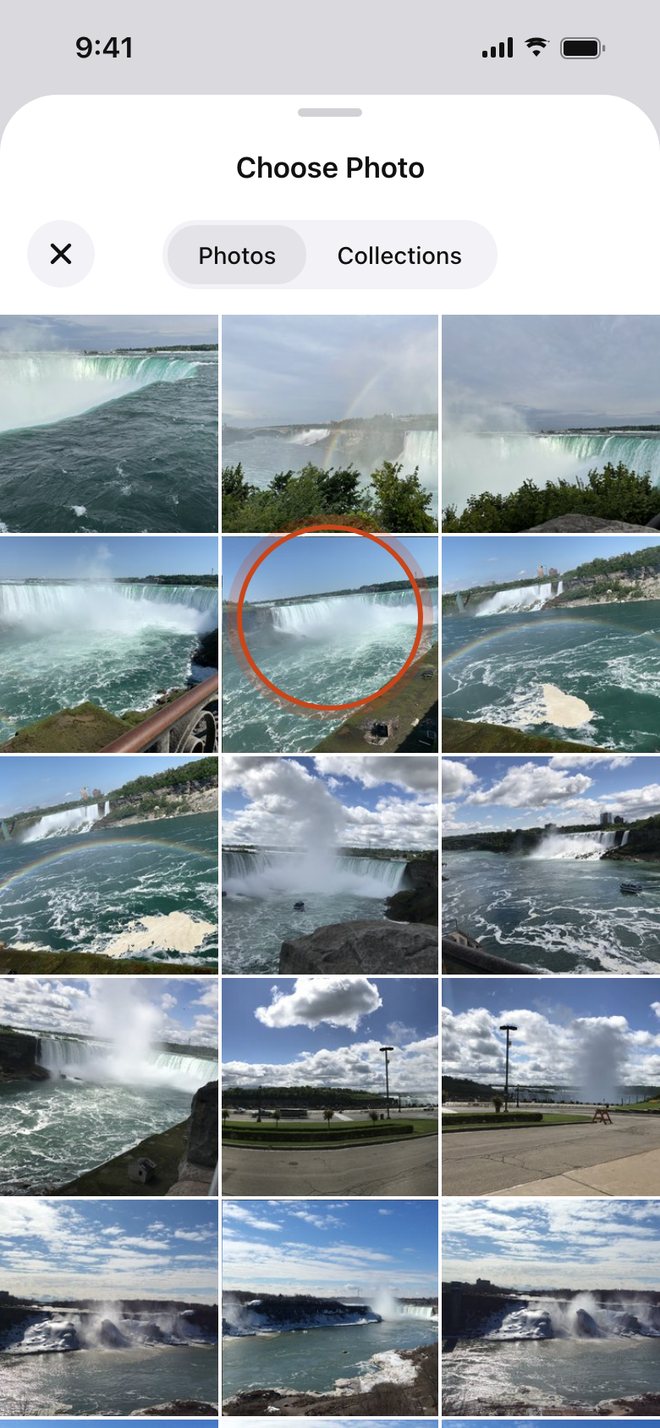
MemoryPlaces does one thing: you give it one photo taken at a place, and it creates a normal album in Apple Photos with the photos taken around that spot, across all the years in your library.
- Pick one photo from the place. Any photo with location data works: the front porch, the cabin dock, the view from the hotel.
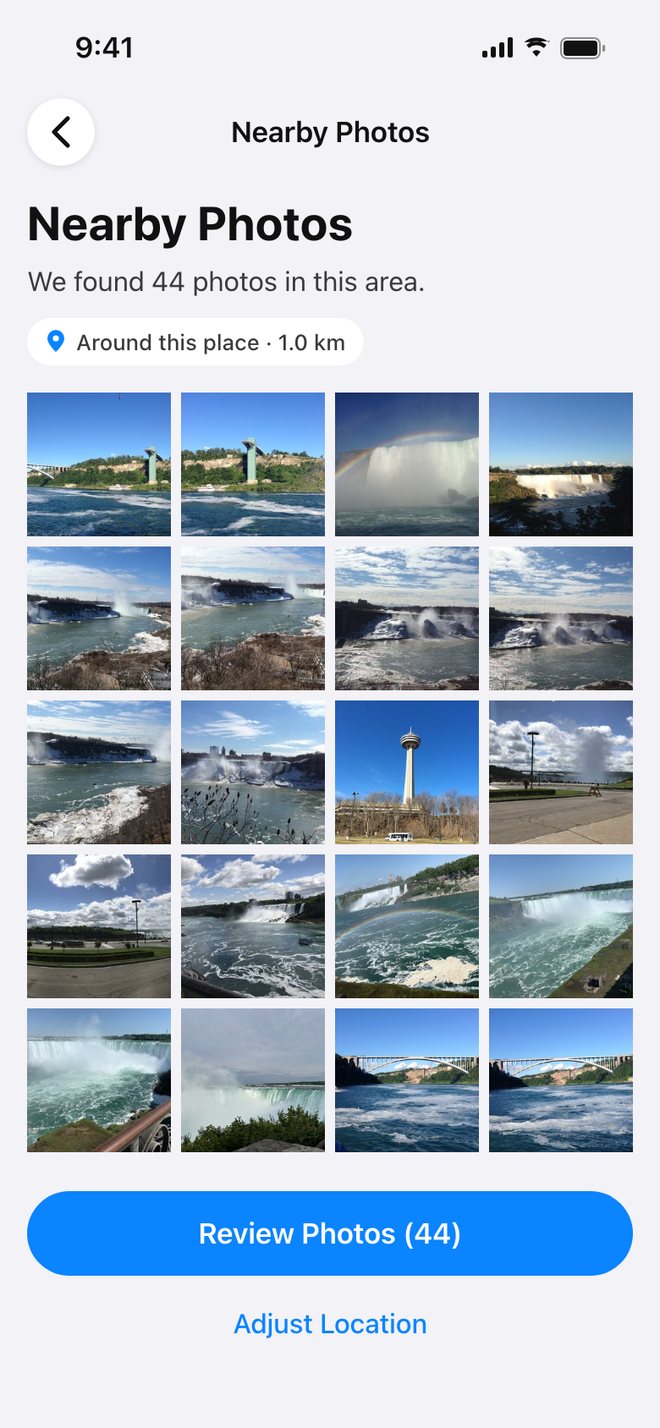
- Confirm the place on the map. MemoryPlaces shows where the photo was taken and finds the photos taken around it (about 1 km on the free plan), with a preview of what it found.
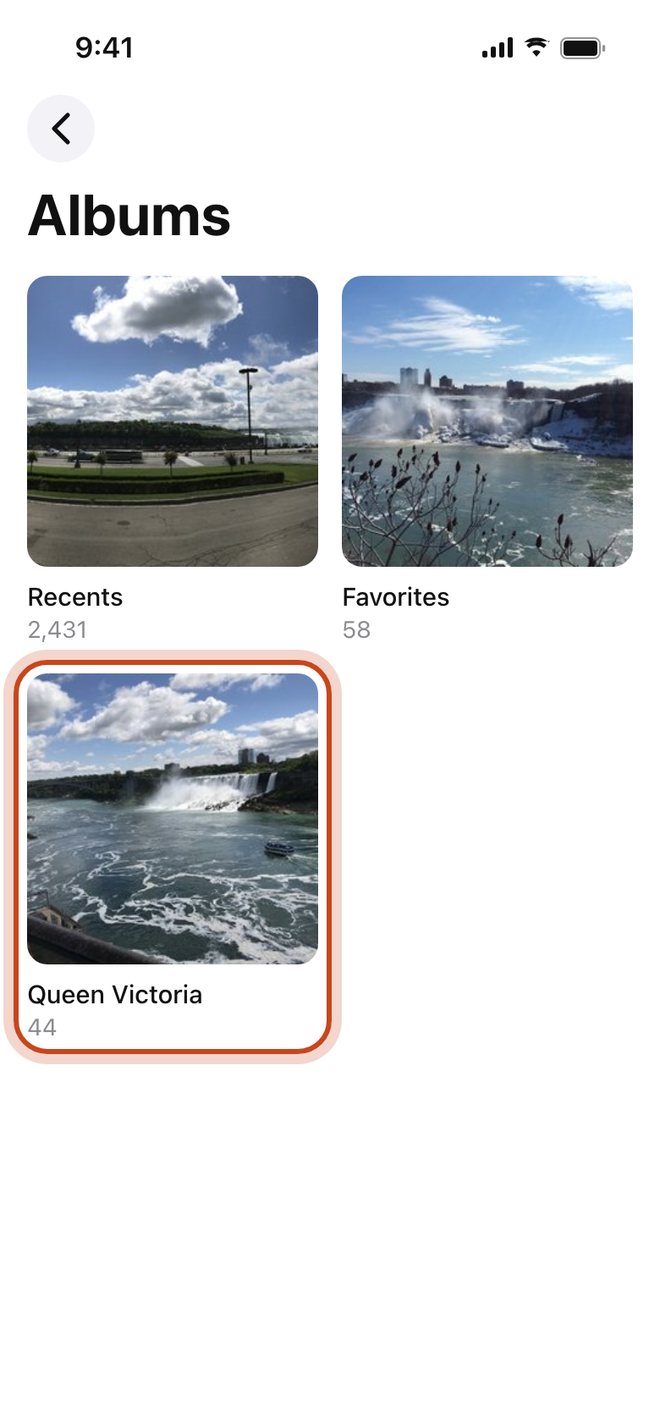
- Name it and tap Create Album. The album appears in Apple Photos, next to your other albums. You can view, edit, and share it there like any album you made yourself.
After your next visit: tap Refresh
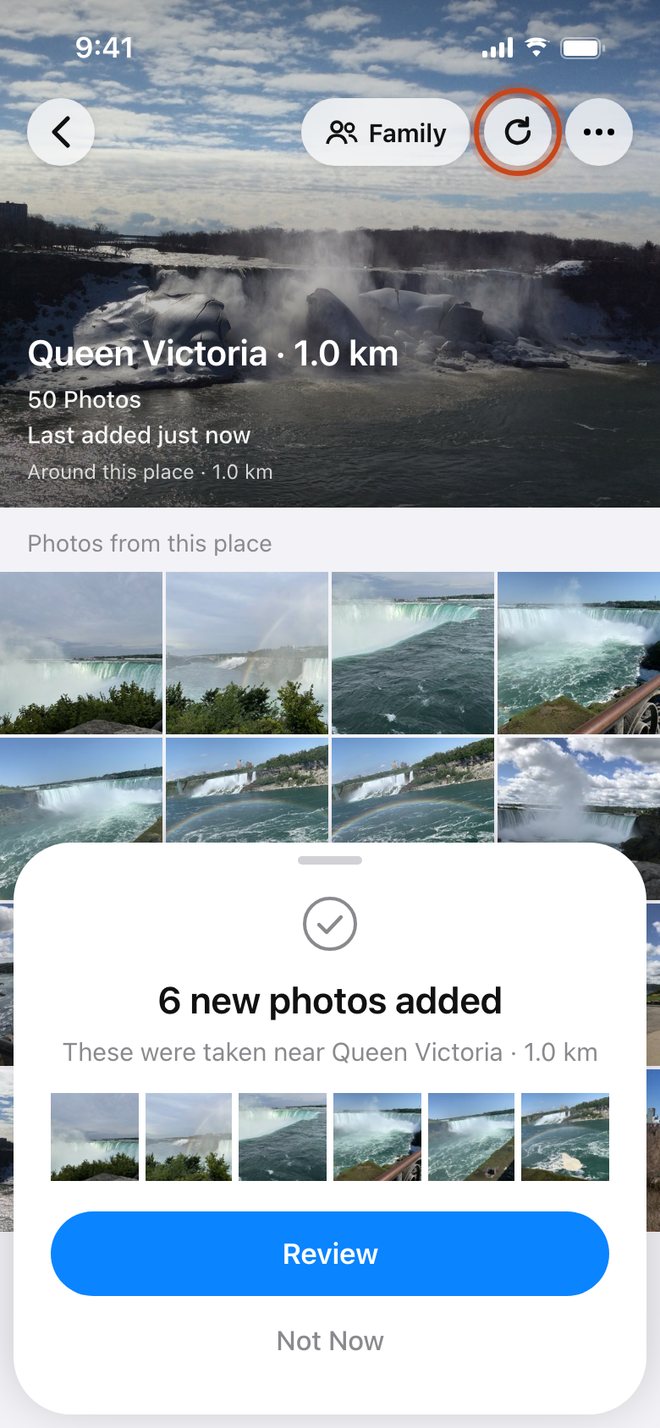
The album doesn't change on its own. When you've been back and taken new photos, open the place in MemoryPlaces and tap Refresh. It checks for new photos taken there, shows them to you, and adds them to the same Apple Photos album. One album, every visit.
Sharing the place with family (new in 1.0.5)
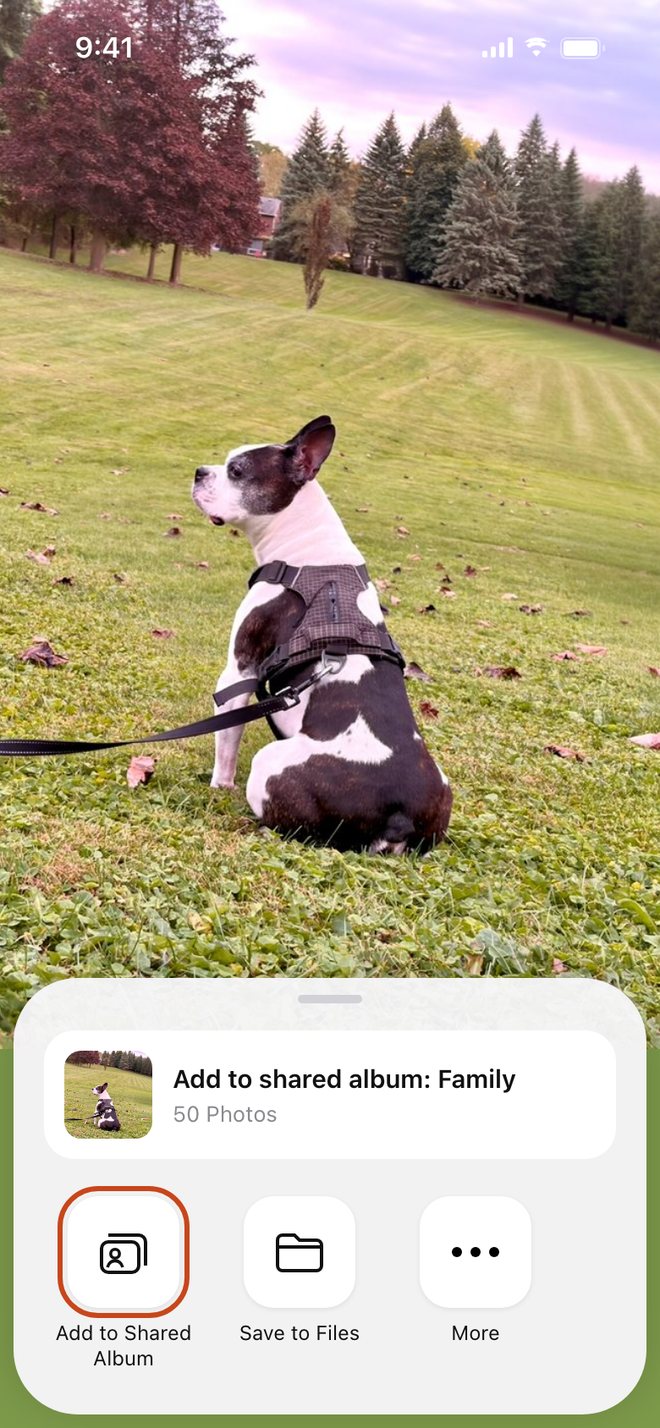
Tap Family on a place and its photos go to an iCloud Shared Album through the standard share sheet: Add to Shared Album, pick the album, then tap ✓. After a later visit, Refresh first, and only the new photos go to Family. The shared album lives in your own iCloud, not on our servers.
Family members without an iPhone can open a shared album from a link. When you create a shared album in iOS 27, tap Sharing Options and choose to share it with a link; the people you send the link to can join in a web browser and add their own photos, with no Apple Account or Apple device needed. Shared albums created in iOS 26 or earlier use the older Public Website setting instead, which publishes the photos to a web page that anyone can open.
What's free
The free plan creates up to 3 place albums using the standard area around your photo, and includes Refresh and Family. Paid plans add more albums, a choice of area size, and iCloud sync between devices.
Privacy
MemoryPlaces reads location data on your device and writes albums into your own Photos library. There's no account, and your photos never reach a server we control; they leave your device only when you share them yourself. See our privacy policy.
Who doesn't need this
- You only want to look, not keep an album. The Photos map is enough.
- It was a one-time trip. Search the city name or use a date-range album.
- Your photos have no location data, like scans or some camera imports.
- You've moved your library to another cloud photo service and search there instead.
FAQ
Will the album update by itself?
No. Nothing runs in the background. You tap Refresh when you've been back.
Does it move or copy my photos?
No. The album points to the photos already in your library, the same as an album you make yourself in Photos.
Does it work on iPad and Mac?
Yes, MemoryPlaces is on iPhone, iPad, and Mac.
What if I delete the album in Photos?
MemoryPlaces will notice and offer to recreate it.