How to add or fix the location on iPhone photos
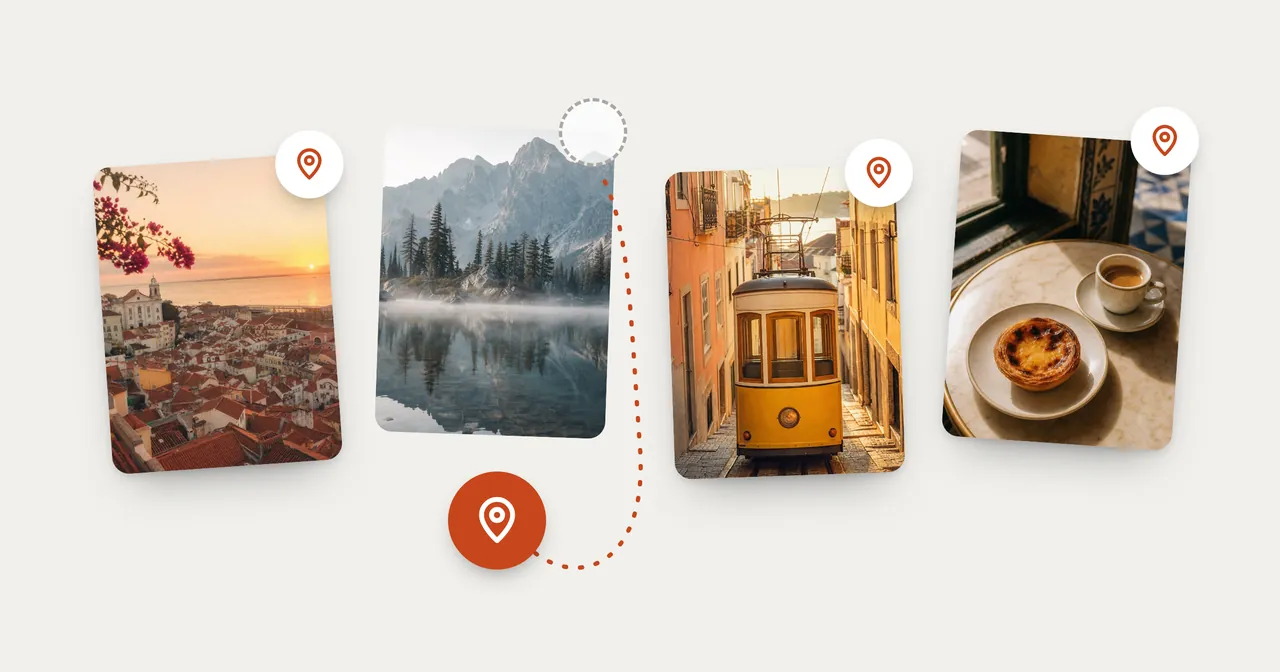
Photos can only find a picture by place if the picture knows where it was taken. The map, Show Nearby Photos, and searching for a place all work from the location saved inside each photo. A photo without one is invisible to all three.
This guide covers how to check whether a photo has a location, why some don't, how to add or correct one, how to fix a whole batch at once, and how to undo the change.
What this guide can't do: recover a location that was removed before a photo reached you. If the information isn't in the file, the only fix is to add it by hand, which is what the steps below do.
Check whether a photo has a location
- Open Photos and tap the photo.
- Swipe up on it, or tap the Info button.
The panel shows where the photo was taken, with a map. If the photo has no location, you'll see Add a location there.
Why some photos have no location
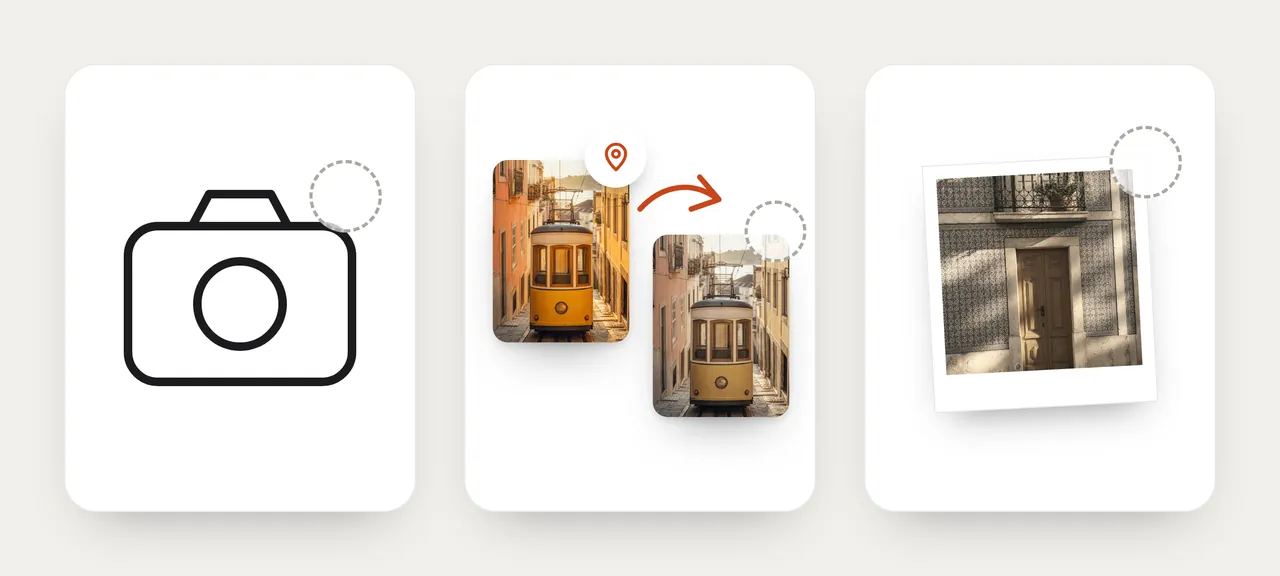
The Camera didn't have access to your location. iPhone saves a location into a photo only when the Camera app has access to Location Services. Check it in Settings › Privacy & Security › Location Services › Camera. If it's set to Never, nothing you shoot gets a location. Changing the setting only affects photos you take from then on.
The sender left it out. When someone shares a photo from Photos, they can tap Options in the share sheet and turn off Location. The photo you receive then has none.
The picture never had one. A scan of a print has no idea where the original was taken, and the same usually goes for screenshots.
Add or change the location of one photo
- In Photos, tap the photo to open it, then tap the More button.
- Tap Adjust Info, then Adjust Location.
- Type where the photo was taken.
- Tap the place when it appears under Map Locations.
You can also start from the info panel: swipe up on the photo, then tap Adjust next to the location, or Add a location if there isn't one.
Pick the most specific match you can find. A street address is more useful later than the name of the city.
Fix many photos at once
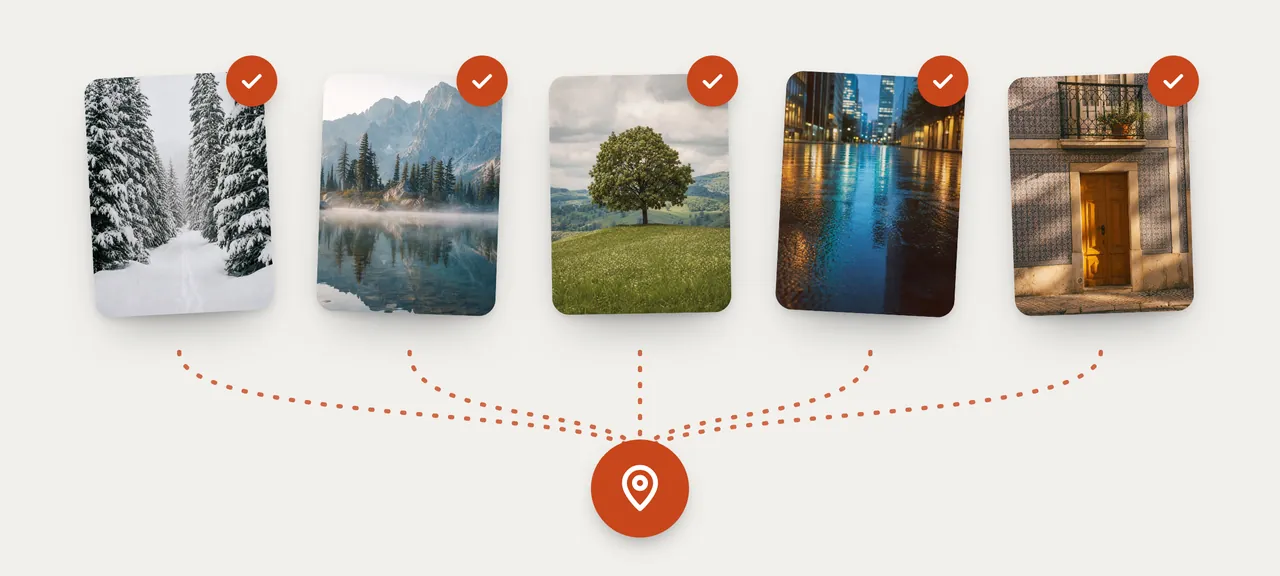
- In your library, tap Select.
- Tap every photo that belongs to the same place.
- Tap the More button, then Adjust Info, then Adjust Location, and choose the place.
All the selected photos get that one location, so work place by place: the scans from your grandparents' house in one batch, the ones from the lake in another.
Undo it
Follow the same steps, and at the Adjust Location screen tap Revert. The photo goes back to its original location.
To remove a location entirely, tap No Location on the same screen.
What you get back
Once a photo has a location:
- It appears on the map. In iOS 27: Library, the More button, then Show Map. Only photos and videos with location information are shown there.
- Show Nearby Photos includes it when you look at another photo from the same place.
- Searching Photos for the place can find it.
Keeping or leaving out location when you share
Sharing a photo from Photos shares its information too, including the date and the location. That's usually what you want inside a family.
To send a photo without it, tap the Share button, tap Options, and turn off Location. Location Not Included appears above the Options button.
If you keep place albums with MemoryPlaces
Disclosure: MemoryPlaces is our app.
MemoryPlaces builds an album for a place from the location on each photo, so a photo with no location is left out, the same as on the Photos map. After you add a location in Photos, open the place in MemoryPlaces and tap Refresh. Refresh checks the photos in your library that aren't in the album yet, including old ones, and lists the ones it finds at that place for you to add.
Nothing is added on its own; you tap Refresh. How place albums work is in our guide to albums by location.
Who doesn't need this
- Your photos all came from your iPhone camera with location turned on. They already have it.
- You never look for photos by place. A missing location won't get in your way.
- You'd rather your photos carried no location. Leave them as they are, or set the Camera to Never.
FAQ
Can I get the original location back after changing it?
Yes. Open the photo, tap the More button, Adjust Info, Adjust Location, then Revert.
Will the photos I take from now on have a location?
They will if the Camera app has access to Location Services. Check Settings › Privacy & Security › Location Services › Camera.
Can I change the date the same way?
Yes. Adjust Info also has Adjust Date & Time, and it works for a batch of selected photos too.
Does the person I send a photo to see where it was taken?
They can, unless you turn off Location under Options before you share.